https://github.com/aristocratos/bashtop
Installation for Ubuntu based distros:
sudo add-apt-repository ppa:bashtop-monitor/bashtop
sudo apt update
sudo apt install bashtop
GNU/Linux
https://github.com/aristocratos/bashtop
Installation for Ubuntu based distros:
sudo add-apt-repository ppa:bashtop-monitor/bashtop
sudo apt update
sudo apt install bashtop
The Cockpit ZFS Manager requires Cockpit version 201 or above. In the Debian Buster repository there’s only cockpit version 188, so you have to use the buster backports repository, which contains cockpit version 223.
# install cockpit
echo "deb http://deb.debian.org/debian buster-backports main" > /etc/apt/sources.list.d/buster-backport.list
apt update
apt-get -t buster-backports install cockpit
# add ZFS manager
git clone https://github.com/optimans/cockpit-zfs-manager.git
cp -r cockpit-zfs-manager/zfs /usr/share/cockpit
# start cockpit
systemctl start cockpit.service
systemctl enable cockpit.service
systemctl status cockpit.service
Now browse to https://ip-address-of-machine:9090 and login.
Damit beim Filme schauen auf dem Fernseher nicht immer händisch der Mauszeiger aus dem sichtbaren Bereich geschoben werden muss, habe ich nach einer Lösung gesucht und wurde mit Unclutter fündig: “Unclutter ist ein kleines Hilfsprogramm, das den Mauszeiger verschwinden lässt.”
#install
apt install unclutter
#config
cat /etc/default/unclutter
“Unclutter startet ab dem nächsten Neustart automatisch. Wenn man das oder die Optionen ändern will, kann man es durch Bearbeiten [3] der Datei /etc/default/unclutter mit Root-Rechten erreichen.”
Standardmäßig verschwindet der Mauszeiger nach einer Sekunde. Kann aber natürlich beliebig angepsasst werden.
https://www.sluug.org/resources/presentations/2020/2020-02-12_permissions.pdf
First install pdfunite:
sudo apt update
sudo apt install poppler-utils
Syntax:
pdfunite source1.pdf source2.pdf merged_output.pdf
If a pdf file is located in a different folder, you have to add the path like this: $home/Downloads/source1.pdf
If you want to merge all pdf’s of the current folder you cant type:
pdfunite *.pdf merged_output.pdf
An alternative with GUI is PDF Arranger.
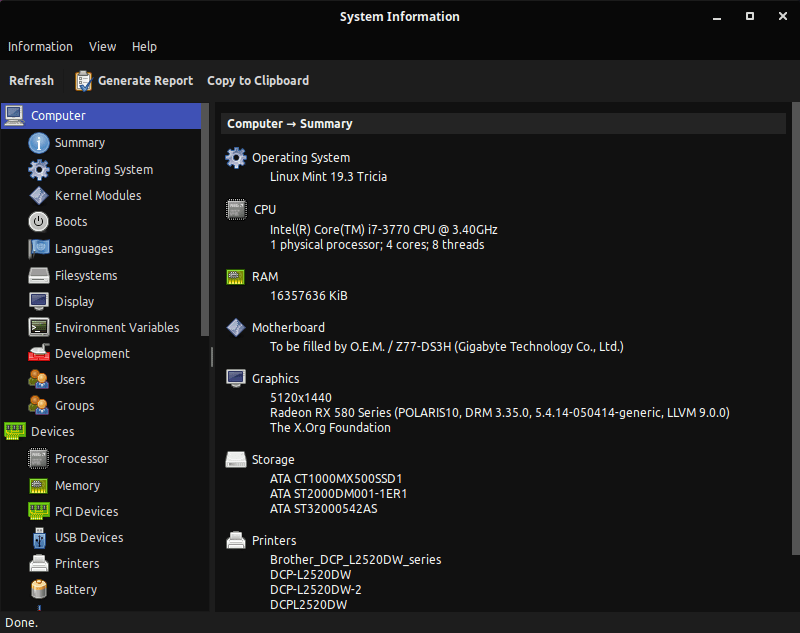
“HardInfo is a system profiler and benchmark for Linux systems. It is able to obtain information from both hardware and basic software, and organize it in a simple to use GUI.”
https://github.com/lpereira/hardinfo/
sudo apt install hardinfo


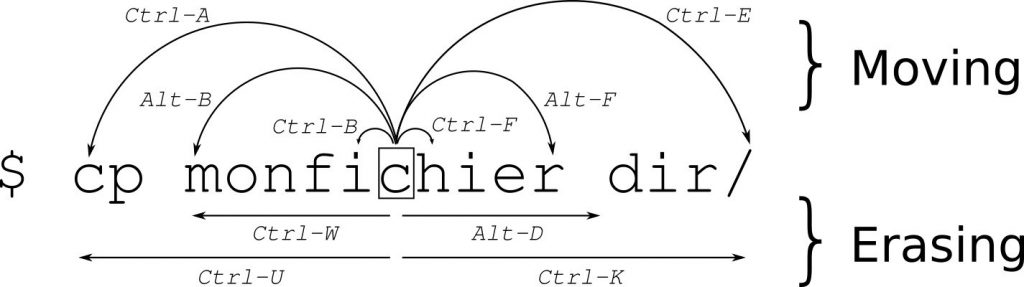
Further shortcuts:
| Ctrl-L | Cleans the screen |
| Ctrl-Y | Pastes back the stuff erased by Ctrl-K or Ctrl-U |
| Ctrl-C | Aborts a application |
| Ctrl-Z | Suspend a application. Resume it again by fg (resume in foreground) and bg (resume in background). Use jobs if you have multiple suspended applications and use fg %# (where # is the job number) to get it back on screen or end it with kill %#. |
| Ctrl-D | is same as typing exit |
| Pos1 | like Ctrl-A |
| End | like Ctrl-E |
| Ctrl-R | Search terminal history |
| Ctrl-G | Exit searching terminal history |
Some of the shortcuts are also recognized by other applications, like Ctrl-U on Ubuntu’s graphical login screen.
If you downloaded a series there are often folders for each episode. Each episode folder often includes another folder called “Sample” with a short demo video file.
Series -> Season 01 -> Episode 01 -> Sample -> sample.mkv
To get rid of these you can use the “find” and “rm” command. To remove each sample folder with its content you have to use the remove command with an “-r”.
find -name "Sample" -exec rm -r "{}" \;
If you already have an LXC with Debian running, add the following three lines to the lxc config (path /etc/pve/lxc/xxx.conf) and reboot the container:
lxc.apparmor.profile: unconfined
lxc.cgroup.devices.allow: a
lxc.cap.drop:
Now simply install docker.
sudo apt update && apt upgrade -y
sudo apt install apt-transport-https ca-certificates curl gnupg2 software-properties-common
curl -fsSL download.docker.com/linux/debian/gpg | sudo apt-key add -
sudo add-apt-repository "deb [arch=amd64] https://download.docker.com/linux/debian $(lsb_release -cs) stable"
sudo apt update
sudo apt install docker-ce docker-ce-cli containerd.io docker-compose
Running and managing docker containers requires sudo privileges. If you don’t want to type sudo for every commmand, add your current user to the docker group.
sudo usermod -aG docker ${USER}
Docker should now be installed, the daemon started, and the process enabled to start on boot. Check that it’s running.
sudo systemctl status docker
Test if the installtions is working correctly with hello-world.
sudo docker run hello-world
Each container you will create gets a unique ID and name you can look up with “docker ps”. To remove the docker instance just use “docker rm” followed by the ID or the container name.
sudo docker ps -a
sudo docker stop relaxed_williamson
sudo docker rm relaxed_williamson