this.getModel().read("/Object", {
filters: [
new Filter({
path: "firstName",
operator: FilterOperator.EQ,
value1: "Max"
}),
new Filter({
path: "lastName",
operator: FilterOperator.EQ,
value1: "Mustermann"
})
],
success: oData => { },
error: err => { }
});
Category: Fiori / SAPUI5
[SAPUI5] Binding with filter on XML View
https://sapui5.hana.ondemand.com/sdk/#/topic/5338bd1f9afb45fb8b2af957c3530e8f.html
There are two ways to use a filter.
Option 1:
items="{
path: '/myItems',
parameters : {
$filter : 'itemName eq \'myItemName\'',
$orderby : 'createdAt desc'
},
}">
Option 2:
items="{
path: '/myItems',
parameters : {
$orderby : 'createdAt desc'
},
filters : {
path : 'itemName ',
operator : 'EQ',
value1 : 'myItemName'
},
}">
[SAPUI5] Toogle Dark mode from Shell Header
There are several different types of buttons you can add to the Shell Header: https://sapui5.hana.ondemand.com/sdk/#/api/sap.ushell.renderers.fiori2.Renderer%23methods/Summary
For my test I choose the “addHeaderEndItem” Button. Add the fowlloing logic in the Component.js file to create the button and the logic for switching the theme:
_addHeaderButton: function () {
const oRenderer = sap.ushell.Container.getRenderer("fiori2");
oRenderer.addHeaderEndItem("sap.ushell.ui.shell.ShellHeadItem", {
id: "toogleTheme",
icon: "sap-icon://circle-task-2",
visible: "{device>/orientation/landscape}",
tooltip: "Switch Theme",
press: (oEvent) => {
const toogleButton = oEvent.getSource();
if (toogleButton.getIcon() === "sap-icon://circle-task-2") {
sap.ui.getCore().applyTheme("sap_fiori_3_dark");
toogleButton.setIcon("sap-icon://circle-task");
} else {
sap.ui.getCore().applyTheme("sap_fiori_3");
toogleButton.setIcon("sap-icon://circle-task-2");
}
}
}, true);
},
Afterwars you need call the method in the init() function of the component. No reload the app and you will find the new button in the top right corner. Pressing will switch the theme to dark or back to light theme.


[SAPUI5] UI5 Web Components
https://blogs.sap.com/2020/12/21/using-ui5-web-components/
“With UI5 Web Components, developers can build the core logic of the application using these popular web frameworks, while using UI5 Web Components as the visual elements (controls).
- SAPUI5 – https://ui5.sap.com
- React – https://reactjs.org
- Angular – https://angular.io
- Vue.js – https://vuejs.org
Each of these web frameworks have different ways of handling data layer, persistence, binding, and integration with APIs, etc. but the nice thing about web components is that is integrates easily, regardless of the framework.”
[OpenUI5] SAP Fiori elements add-on for OpenUI5 using an OData V4 service
Recently I found this blog post about the new SAP Fiori elements add-on for OpenUI5.
https://blogs.sap.com/2020/12/21/now-available-sap-fiori-elements-add-on-for-openui5/
It includes a little exercise to try it out for yourself. I wrote down all steps I had to make on my Linux Mint 20 installation.
These two links also helped me a lot.
https://github.com/sap-samples/cloud-cap-samples
https://cap.cloud.sap/docs/get-started/
Prerequisites (Node.js, Visual Studio Code, SAP Fiori tools, Git)
curl -sL https://deb.nodesource.com/setup_15.x | sudo -E bash -
sudo apt-get install -y nodejs
node --version
npm -v
Change npm’s default directory to prevent permission errors.
https://docs.npmjs.com/resolving-eacces-permissions-errors-when-installing-packages-globally
mkdir ~/.npm-global
npm config set prefix '~/.npm-global'
mkdir ~/.npm-global/lib
#add the following line to your .bashrc or .profile or .zshrc
export PATH=~/.npm-global/bin:$PATH
Step 1: Provide an OData V4 service
git clone https://github.com/sap-samples/cloud-cap-samples remote-odata-service
cd remote-odata-service
npm i
npm i -g @sap/cds-dk
cds watch fiori
Step 2: Generate a SAP Fiori elements List Report Object Page (LROP) app with Fiori tools
1. Open VSC, press Ctrl + P and search for > Fiori: Open Application Generator
2. Choose SAP Fiori elements application
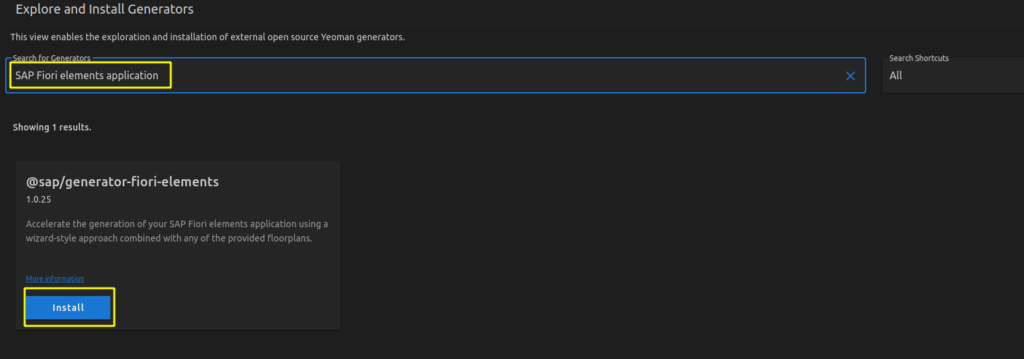
In my case there was no default generator, so first I had to install it.
npm install -g @sap/generator-fiori-elements@latest
This can also be done directly in VSC.


3. Select List Report Object Page
4. Select Connect to an OData Service as Data source and enter as URL http://localhost:4004/browse
5. Choose Books as the Main entity and texts as Navigation entity
6. Complete the mandatory information module name (e.g. bookshop) and Project folder path for storing your app. Of course, you can also fill in the optional information.
Step 3: Make changes in package.json and ui5.yaml required for using OpenUI5
package.json
{
"name": "fiorielements_openui5",
"version": "0.0.1",
"private": true,
"sapux": true,
"description": "A Fiori application.",
"keywords": [
"ui5",
"openui5",
"sapui5"
],
"main": "webapp/index.html",
"scripts": {
"start": "fiori run --open index.html",
"start-local": "fiori run --config ./ui5-local.yaml --open index.html",
"build": "ui5 build -a --clean-dest --include-task=generateManifestBundle generateCachebusterInfo",
"deploy": "fiori add deploy-config"
},
"devDependencies": {
"@sap/ux-specification": "latest",
"@sap/ux-ui5-tooling": "1",
"@ui5/cli": "2.5.0",
"@ui5/fs": "2.0.1",
"@ui5/logger": "2.0.0"
},
"ui5": {
"dependencies": [
"@sap/ux-ui5-tooling",
"@sap/open.fe"
]
},
"dependencies": {
"@sap/open.fe": "1.85.0"
}
}
ui5.yaml
specVersion: '2.2'
metadata:
name: 'fiorielements_openui5'
type: application
framework:
name: OpenUI5
version: "1.85.0"
libraries:
- name: sap.m
- name: sap.ui.core
- name: sap.uxap
- name: themelib_sap_fiori_3
server:
customMiddleware:
- name: fiori-tools-proxy
afterMiddleware: compression
configuration:
ignoreCertError: false # If set to true, certificate errors will be ignored. E.g. self-signed certificates will be accepted
backend:
- path: /browse
url: http://localhost:4004
- name: fiori-tools-appreload
afterMiddleware: compression
configuration:
port: 35729
path: webapp
Step 4: Run the V4 application
cd ~/projects/fiorielements_openui5
npm i
npm start
Now http://localhost:8080/index.html should be opened in your browser.
“Note: Clicking on the Go button in List Report application might request user and password. Please enter user alice, no password.”
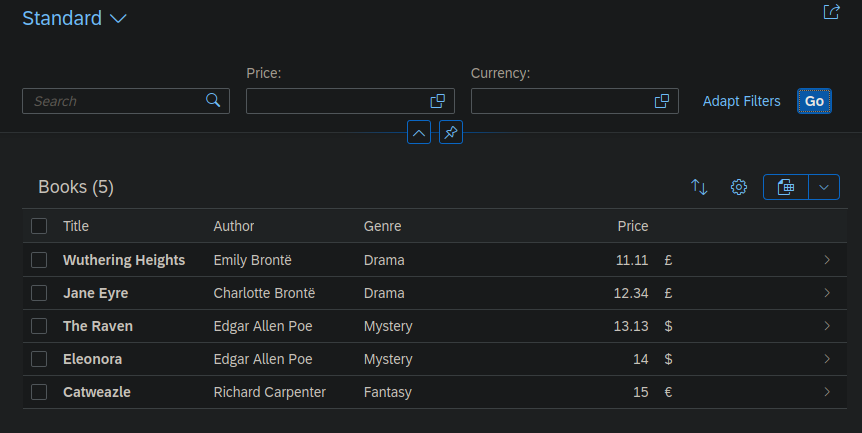
Finally I got my list items.

[SAPUI5] Busy Dialog
onInit: function () {
this._oModel = this.getOwnerComponent().getModel();
},
onButtonPress: function (oEvent) {
//get Data
var sPath = oEvent.getSource().getBindingContext().sPath;
var oData = this.getView().getModel().getObject(sPath);
var that = this;
//busy on
this._busyDialog = new sap.m.BusyDialog({});
this._busyDialog.open();
//create
this._oModel.create("/DataSet", oData, {
success: function (oData) {
that._busyDialog.close();
sap.m.MessageToast.show(that.getResourceBundle().getText("ok"));
},
error: function (oError) {
that._busyDialog.close();
sap.m.MessageToast.show(that.getResourceBundle().getText("nok"));
}
});
},

[SAPUI5] MyInbox: Integration of Detail View – EmbedIntoDetail
https://launchpad.support.sap.com/#/notes/2305401 (App to App Navigation CookBook.pdf)
https://blogs.sap.com/2020/07/31/fiori-my-inbox-integration-of-custom-detail-page/
Target:
Go to /n/ui2/fpld_cust and define a second target for your App, i.e. approve.

The approve target needs the “emdedIntoDetails” parameter:

SWFVISU:
Add the new target for your WF Task. Here you have access to all attributes of your Workitem-Container. Pass all your mandatory fields you’ve defined in your oData Entity.
Some examples: https://blogs.sap.com/2016/05/31/my-inbox-open-task-swfvisu-configuration/

If your missing some parameters, just add them in your Workitem Task and pass the values directly into it right from your Workflow Container. This looks much better.

Manifest:
Add a route to navigate via Inbox. The pattern has to match your inbox url.

"routes": [
{
"pattern": "",
"name": "master",
"target": "master"
},
{
"pattern": "DataSet/{Pernr},{Datum},{Infty}",
"name": "object",
"target": [
"master",
"object"
]
},
{
"pattern": "detail/LOCAL_INBOX/{wfInstanceId}/{taskPath}",
"name": "wfobject",
"target": "object"
}
Detail.Controller:
onInit: function () {
// Model used to manipulate control states. The chosen values make sure,
// detail page is busy indication immediately so there is no break in
// between the busy indication for loading the view's meta data
var oViewModel = new JSONModel({
busy: false,
delay: 0
});
this.getRouter().getRoute("object").attachPatternMatched(this._onObjectMatched, this);
//My Inbox Integration
this.getRouter().getRoute("wfobject").attachPatternMatched(this._onWFObjectMatched, this);
this.setModel(oViewModel, "detailView");
this.getOwnerComponent().getModel().metadataLoaded().then(this._onMetadataLoaded.bind(this));
},
_onWFObjectMatched: function (oEvent) {
this.getModel("appView").setProperty("/layout", "MidColumnFullScreen");
var compData = this.getOwnerComponent().getComponentData();
if (compData && compData.startupParameters && compData.startupParameters.PERNR && Array.isArray(compData.startupParameters.PERNR) &&
compData.startupParameters.PERNR[0]) {
var sPernr = compData.startupParameters.PERNR[0];
var sDatum = compData.startupParameters.DATUM[0];
var sInfty = compData.startupParameters.INFTY[0];
this.byId("detailPage").addStyleClass("myInboxPage");
this.getModel().metadataLoaded().then(function () {
var sObjectPath = this.getModel().createKey("/DataSet", {
Pernr: sPernr,
Datum: sDatum,
Infty: sInfty
});
this._bindView(sObjectPath);
}.bind(this));
}
},
[SAPUI5] uncheck checkbox if another one is selected
XML
<Checkbox id="Checkbox1" selected="{ path:'oModel>CB1' }" select="handleOrderSelected"></Checkbox>
<Checkbox id="Checkbox2" selected="{ path:'oModel>CB2' }" select="handleRejectSelected"></Checkbox>
controller.js
handleOrderSelected: function (oEvent) {
//Wenn Checkbox1 selektiert, setze Checkbox2 auf false.
var bSelected = oEvent.getParameter("selected");
if (bSelected) {
var bindingContext = oEvent.getSource().getBindingContext("oModel");
this.oModelTemplate.setProperty("CB2", "", bindingContext, false);
}
},
handleRejectSelected: function (oEvent) {
//Wenn Checkbox2 selektiert, setze Checkbox1 auf false.
var bSelected = oEvent.getParameter("selected");
if (bSelected) {
var bindingContext = oEvent.getSource().getBindingContext("oModel");
this.oModelTemplate.setProperty("CB1", "", bindingContext, false);
}
}
[Fiori] SWFVISU vs SWFVMD1
Best explanation I found directly in the code:

Update 21.10.2025: This is also mentioned in the note 3101192