When dealing with standard HCM Fiori Applications, it can be handy to provide custom error messages when adding additional checks. This can easily be done using the message container.
        DATA(lo_message_container) = mo_context->get_message_container( ).
        lo_message_container->add_messages_from_bapi( it_bapi_messages          = VALUE #( ( type = 'E' message = 'This is a custom error.' ) )
                                                      iv_determine_leading_msg  = /iwbep/if_message_container=>gcs_leading_msg_search_option-last
                                                      iv_add_to_response_header = abap_true ).
        RAISE EXCEPTION NEW /iwbep/cx_mgw_busi_exception( ).
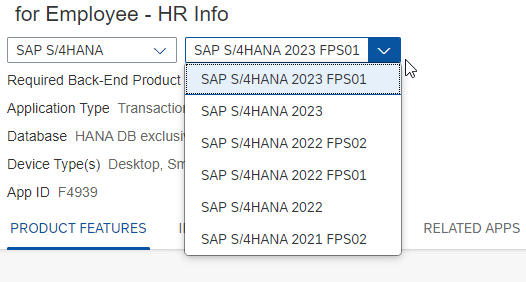
In the SAP Fiori Apps Reference Library, you have to select the target system on which the app is to be installed. You can choose between different major releases and also between different FPS’s.
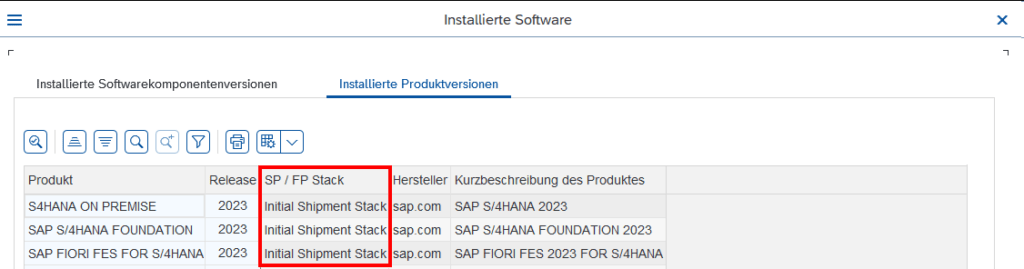
These feature packs are smaller, targeted updates delivered between major releases of S/4HANA. To check if a Feature Pack is installed on your system, go to
System → Status → Button Product version → Tab Installed Product versions → Column SP / FTP Stack
After redefining an OData Service like it is described here, you also have to add your new service in your Extension Project, so that the App knows, that it should use your redefined service instead of the default one. In the WebIDE there was a wizard that helped you with this task. In BAS there is also a wizard, but only for Adaptions Projects. For a classic extension project, there is no wizard anymore, and you have to manually add your new service to the manifest.json. But it is quite simple. You have to add your new service as data source and then also as a model. When no model name is provided, it will be used as default model.
I was wondering for quite some time, what the difference is between Extension Projects and Adaptions Projects. In the comments to this blog post, I finally found the answer from Oliver Graeff:
Adaptation projects are one of the capabilities of SAPUI5 flexibility, which lets developers, key users and end users adapt/extend SAPUI5 applications. Adaptation projects are the go-to solution for developer adaptation in SAPUI5 and are the ‘next-generation’ extension projects. Using the concepts of SAPUI5 flexibility, adaptation projects offer many more possibilities, such as extending SAP Fiori elements applications or extending apps without pre-defined extension points.
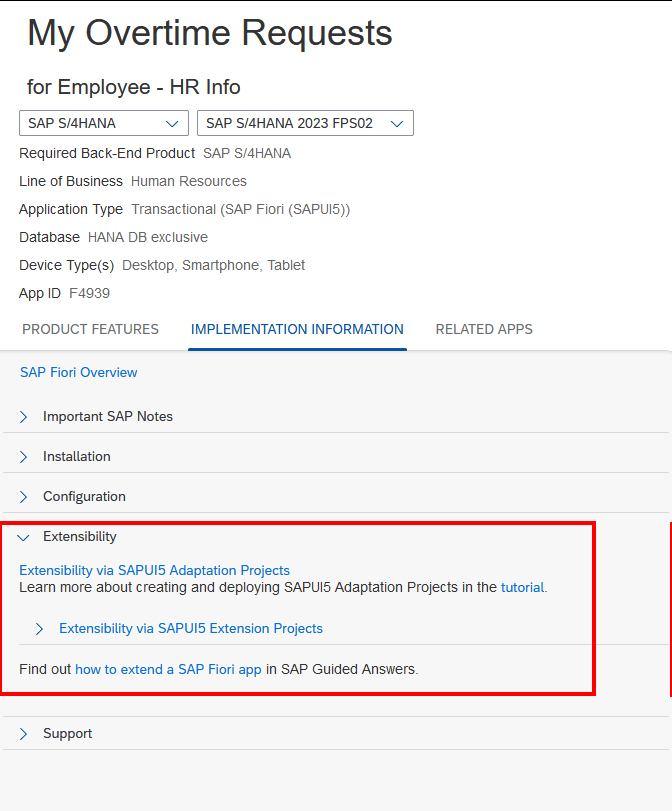
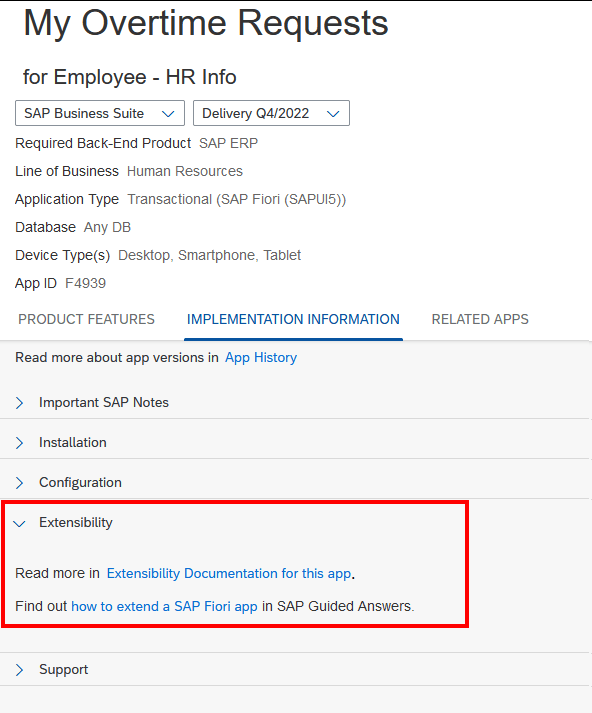
To check for a specific application, what the recommended extension approach is, simply go to the Fiori Reference Library, search for your app, choose the backend system (S/4 or Business Suite) and the current release version, navigate to Implementation Information and expand Extensibility. For example, My Overtime Requests on S/4HANA can be extended via an Adaption Project.
But on R/3, the only approach is an Extension Project.
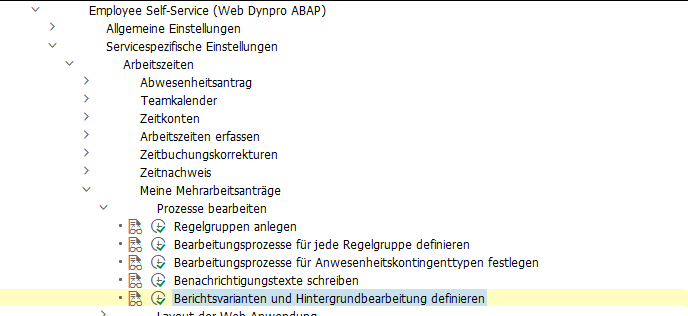
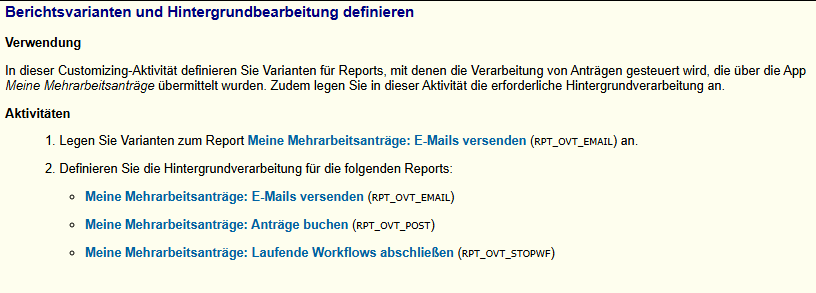
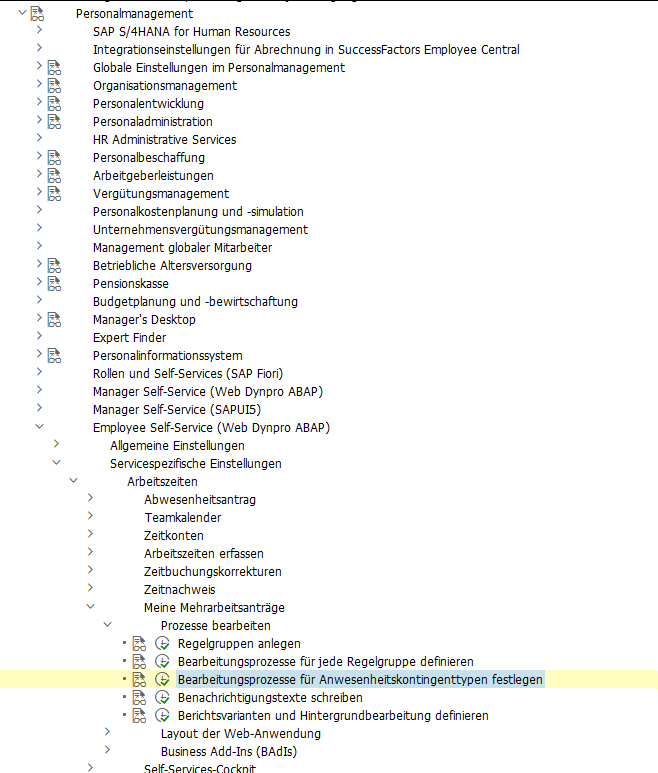
Customizing SPRO → Personnel Management → Employee Self-Service (Web Dynpro ABAP) → Service-Specific Settings → Working Time → My Overtime Requests.
Adjusting the Fiori UI
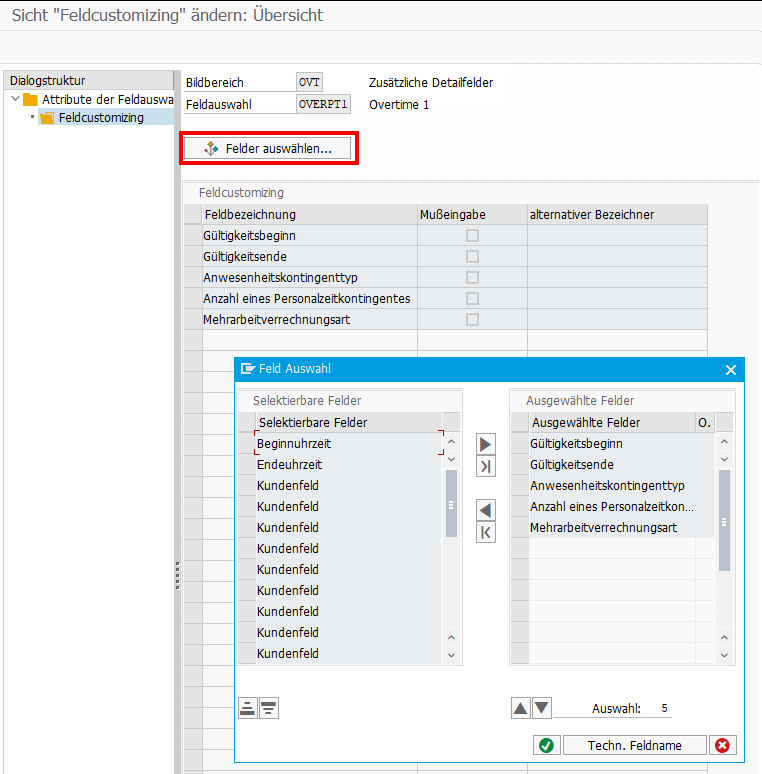
If you want to hide fields in the Fiori frontend, or you want to adjust some labels, you can simply do this via Customizing: My Overtime Requests → Layout of the Web Application → Define Field Selection
Multi-Level Approval for Time Data Requests (HRPT_B_TMD_MULTI_APPROVERS)
The BAdI is called when opening the My Overtime Request App and a second time when clicking on the New Button to create a new OVT request. It’s not triggered when sending the request, what I initially expected. To reuse the code from the sample class,
*    "Determine approver level
*    DATA(cust_key_request_fields) = VALUE cl_hrpt_ovt_const=>ovt_cust_key_request_fields( pernr = iv_pernr
*                                                                                          ktart = iv_subtype
*                                                                                          date  = is_request_period-start_date ).
*    TRY.
*        DATA(approval_settings) = cl_hrpt_ovt_cust_factory=>get_customizing_reader( )->get_approval_settings( REF #( cust_key_request_fields ) ).
*      CATCH cx_hrpt_tmd.
*        RETURN.
*    ENDTRY.
*    IF approval_settings-use_multiple_approver = abap_false.
*      RETURN.
*    ENDIF.

....

*    "If no last approvers exist, use line manager, HR BP and HR Admin by default
*    CALL FUNCTION 'BAPI_GET_LINE_MANAGER'
*      EXPORTING
*        im_objid       = iv_pernr
*      IMPORTING
*        es_approver    = line_manager
*        ev_has_manager = approver_exists.
*    IF approver_exists = abap_true.
*      last_seqnr = last_seqnr + 1.
*      line_manager-seqnr = last_seqnr.
*      APPEND line_manager TO rt_approver_tab.
*      IF lines( rt_approver_tab ) >= approval_settings-approver_level.
*        RETURN.
*      ENDIF.
*    ENDIF.
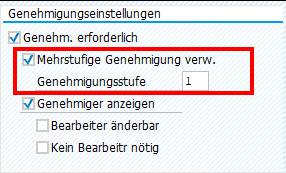
you have to set the amount of approval steps in the customizing.
Also, a Filter must be set for the BAdI:
When you run into a permission issue when opening an overtime request in MyInbox, take a look in the HCMFAB_COMMON BAdI. Perhaps the GET_CONFIGURATION method must be implemented
  method if_ex_hcmfab_common~get_configuration.

    ev_hide_employee_picture     = abap_false.
    ev_hide_employee_number      = abap_false.
    ev_hide_ce_button            = abap_false.
    ev_enable_onbehalf           = abap_false.
    ev_show_empl_number_wo_zeros = abap_false.

* On_behalf is switched off by default for compatibility reasons
* To activate it for all users who are mangers the following code could be used:

    case iv_application_id.
      when gc_application_id-myovertimequota.
        ev_enable_onbehalf = boolc( go_employee_api->is_manager( iv_application_id = iv_application_id
                                                                 iv_pernr          = iv_employee_number ) = abap_true ).
    endcase.

* In case that on behalf is active, transfer all data to the frontend. This is faster for small number of employees.
* The backend search would only transfer the visible employees to the frontend, at the cost of multiple smaller requests.

    ev_use_onbehalf_backend_search = abap_false.

  endmethod.
Custom Workflow
If you want to replace the default Workflow WS02400057 (PT_OVTREQ) with a custom one, you must adjust the customizing (as described here for the standard WF), and you’ll need to create a new BAdI Implementation for /IWWRK/ES_WF_WI_BEFORE_UPD_IB analog HCMFAB_MYOTQ_APPROVAL_INBOX to get the Approve and Rejects Buttons working by providing the Workflow-ID and decision Step-ID.
Extensibility
Although it should be possible to extend both Fiori Apps via Adaptation Projects, I was unable to do so. Either it’s a problem with the new adaption editor, which got new released while writing the blog, or it is a problem with the apps itself. Whatever I tried, I was always running in issues.
Therefore, I did it the “classic” way and created an Extension Project and used the provided Extension Points. For the Approval App, I was unable to preview the application directly in BAS, perhaps because it is only an Inbox integration and does not run standalone. I therefore always had to deploy, to test my changes.
Recently I was continuing an enhancement project of a standard Fiori Application. The already existing enhancement project was created using WebIDE a few years ago. Now I needed to add some more functionality to the enhancement project using the Business Application Studio. To my surprise, the automatic migration of the WebIDE project to a BAS project was working without any issues. Nice! I could make my changes and everything was fine until I tried to deploy the application.
The abap_deploy_taskaborted with the error “Request is not a local Request” (in German “Auftrag ist kein lokaler Auftrag“).
Somehow it did not deploy in my Workbench Transport Request and was expecting a Local Transport Request.
At first, I thought, this was a problem in the ui5-deploy.yaml configuration of my App, and therefore I was looking in the wrong direction. But after checking the package of the already deployed enhancement project in the backend, I finally found the reason. The Transport Layer of the Package containing the BSP application was not correct. It turned out, that the previous developer was not able to deploy from his WebIDE directly to the system, instead he deployed to another system, exported and then imported the transport request manually. Therefore, the “Original System” of all objects was incorrect and also the Transport Layer on the Package. After updating both (like described here), I was able to deploy the enhancement project successfully in my Workbench Transport Request.
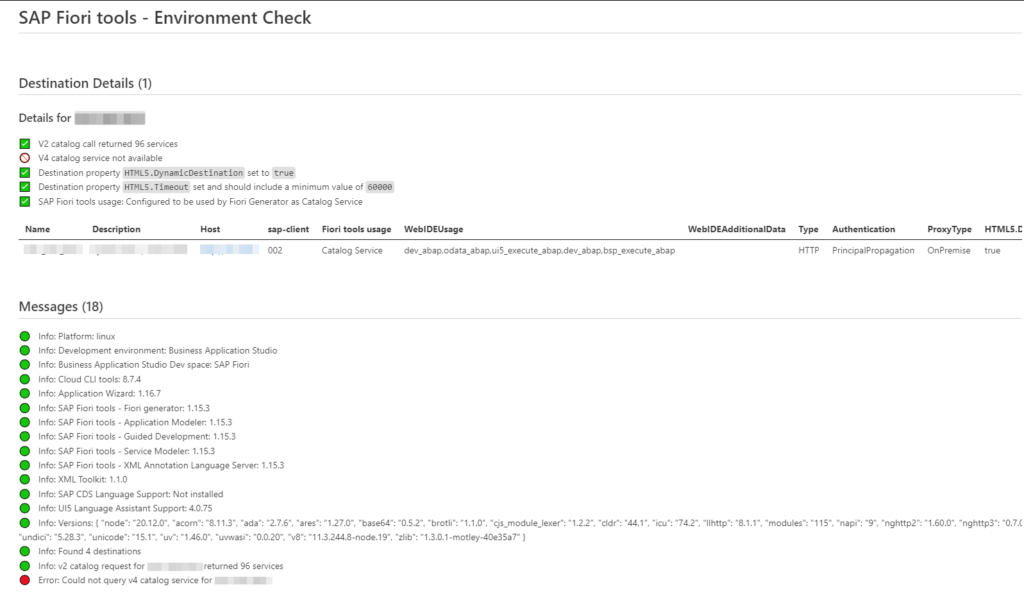
Recently found the Environment Check functionality in BAS, which really helped me to check destinations on different customer BAS instances, where I didn’t have direct access to the BTP instance. I’m just posting this here so I don’t forget.
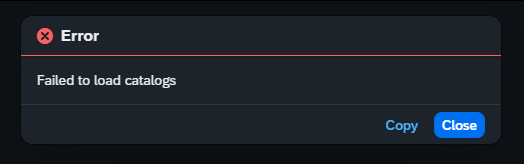
Recently, I was confronted with the “Failed to load catalogs” error message when starting the Fiori Launchpad (/ui2/flp) and navigating to the App Finder.
The system was quite new and the Fiori Customizing was not completely done yet. When opening the Dev Tools, I saw a failed request to
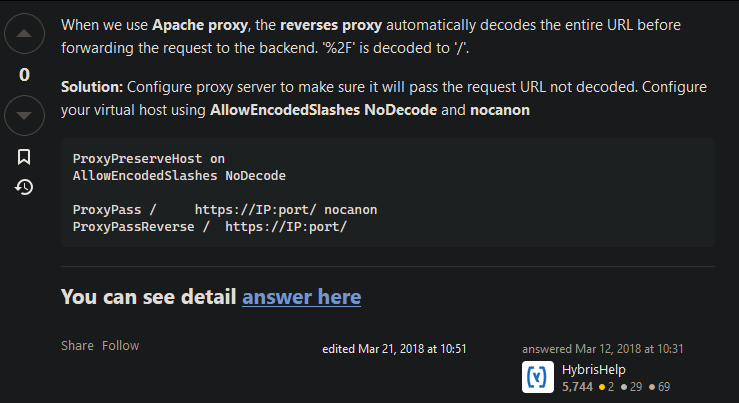
Opening this failed request in a new tab results in an HTTP 404 from an Apache web service. So it looked like an Apache was set up as reverse proxy in front of the sap system. I tried to call the PageSets endpoint without providing the key %2FUI2%2FFiori2LaunchpadHome and got an HTTP 200. So in general, Apache was working, and the service endpoint page_builder_pers was responding. Next, I did the same service calls from the gateway client and both calls were working fine. So it looked like Apache was the problem when providing the PageSets key. After a quick search, I found this post on Stack Overflow:
So the issue was some (in this case) incorrect decoding of ‘%2F’. After contacting the basis team and adding the proposed Apache configs, the request finally resolved successfully, and the Launchpad was displaying some apps.
I was having a situation, where I needed to access file content via an association. This led to two problems, one in the backend and one in the frontend.
### Get file content via association
GET http://localhost:4004/odata/v4/admin/MainEntity({{ID}})/file/content
Authorization: Basic user:password
This did not work, because in this case, we don’t get the required file ID in the Files handler in req.data.ID (find the reason here), which is needed to read the file from the external system. Therefore, I had to implement the following workaround (line 5-8), which checks from which entity we are coming and is fetching the requested file ID from the DB.
    srv.on('READ', Files, async (req, next) => {
        //if file content is requested, return only file as stream
        if (req.context.req.url.includes('content')) {

            // workaround: when File is requested via Association from MainEntity, as the ID is then not provided directly
            if (req.context.req.url.includes('MainEntity')) {
                req.data.ID = await SELECT.one.from(req.subject).columns('ID')
            }

            const file = await SELECT.from(Files, req.data.ID)
            if (!file) return next() // if file not found, just handover to default handler to get 404 response

            try {
                const stream = await getMyStreamFromExternalSystem(req)
                return [{ value: stream }]
            } catch (err) {
                req.error(`Could not read file content`)
            }

        } else return next() // else delegate to next/default handlers without file content
    })
This way, the file content can now be read directly via File and also via MainEntity following the association.
The next challenge was to display this file content in a Fiori Elements app. This works out of the box, if the file content is called directly from the Files entity, means not over an association. But if the file content is coming via an association, it seems like the Fiori Elements framework is creating an incorrect backend call. It tries to call the mediaType from the MainEntity instead of the Files entity, resulting in a failing odata call, which looks like this /odata/v4/service/MainEntity(key)/mediaType instead of /odata/v4/service/MainEntity(key)/file/mediaType. The only workaround I found was to overwrite the @Core.MediaType annotation coming from the Files entity by setting the mediaType to a hard value in the annotation.yaml of the Fiori Elements App.
annotate service.fileservice@(
    UI.FieldGroup #FileGroup      : {
        $Type: 'UI.FieldGroupType',
        Data : [
            {
                $Type: 'UI.DataField',
                label: 'Main ID',
                Value: ID,
            },
            {
                $Type: 'UI.DataField',
                label: 'File ID',
                Value: file.ID,
            },
            {
                $Type: 'UI.DataField',
                Value: file.content,
            },
            {
                $Type: 'UI.DataField',
                Value: file.mediaType,
            },
            {
                $Type: 'UI.DataField',
                Value: file.fileName,
            },
            {
                $Type: 'UI.DataField',
                Value: file.size,
            },
        ],
    },
    UI.Facets                     : [
        {
            $Type : 'UI.ReferenceFacet',
            ID    : 'GeneratedFacet2',
            Label : 'File Information',
            Target: '@UI.FieldGroup#FileGroup',
        },
    ],
);

// Workaround as currently display file content via an association in Fiori Elements is incorrectly trying to fetch the media type.
// Therefore add a fix value for the media type. Of course, this only works, if you only expect a specific file type.
annotate service.Files with {
  @Core.MediaType : 'application/pdf'
  content
};
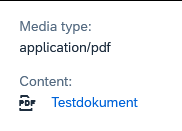
In the Fiori Elements App it will now be displayed like this and by clicking on the Context, it will successfully load the file from the backend: