
DATA(lv_string) = |My string I want to convert to xstring.|.

TRY.
    DATA(lv_xstring)        = cl_abap_codepage=>convert_to( lv_string ).
    DATA(lv_string_decoded) = cl_abap_codepage=>convert_from( lv_xstring ).

    WRITE: / lv_string,
           / lv_xstring,
           / lv_string_decoded.

  CATCH cx_root INTO DATA(e).
    WRITE: / e->get_text( ).
ENDTRY.
Tag: SAP
[ABAP] Filter table using VALUE FOR
DATA(lt_result) = VALUE z_type( FOR line IN lt_table
                                WHERE ( value IN lr_values )
                                ( field = line-value ) ).
[ABAP] Selection Screen Tabbed Block
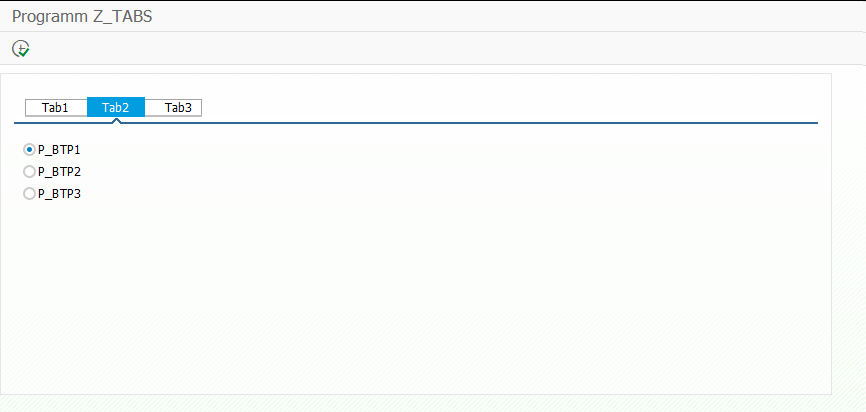
SELECTION-SCREEN BEGIN OF BLOCK bl4 WITH FRAME TITLE TEXT-t01.
SELECTION-SCREEN BEGIN OF TABBED BLOCK tbl FOR 10 LINES.
SELECTION-SCREEN TAB (15) tbl_tab1 USER-COMMAND tab1 DEFAULT SCREEN 1001.
SELECTION-SCREEN TAB (15) tbl_tab2 USER-COMMAND tab2 DEFAULT SCREEN 1002.
SELECTION-SCREEN TAB (15) tbl_tab3 USER-COMMAND tab3 DEFAULT SCREEN 1003.
SELECTION-SCREEN END OF BLOCK tbl.
SELECTION-SCREEN END OF BLOCK bl4.

* Subscreen 1001 Tab1
SELECTION-SCREEN BEGIN OF SCREEN 1001 AS SUBSCREEN.
PARAMETERS p_bool1 TYPE abap_bool AS CHECKBOX.
SELECTION-SCREEN END OF SCREEN 1001.

* Subscreen 1002 Tab2
SELECTION-SCREEN BEGIN OF SCREEN 1002 AS SUBSCREEN.
PARAMETERS p_btp1 TYPE flag RADIOBUTTON GROUP rbg DEFAULT 'X'.
PARAMETERS p_btp2 TYPE flag RADIOBUTTON GROUP rbg.
PARAMETERS p_btp3 TYPE flag RADIOBUTTON GROUP rbg.
SELECTION-SCREEN END OF SCREEN 1002.

* Subscreen 1003 Tab3
SELECTION-SCREEN BEGIN OF SCREEN 1003 AS SUBSCREEN.
PARAMETERS p_bool2 TYPE flag AS CHECKBOX.
SELECTION-SCREEN END OF SCREEN 1003.

INITIALIZATION.

  " provide tab names
  tbl_tab1 = 'Tab1'.
  tbl_tab2 = 'Tab2'.
  tbl_tab3 = 'Tab3'.

  " set active tab (activetab value must be in uppercase)
  tbl-activetab = 'TAB2'.
  tbl-dynnr     = 1002.
  tbl-prog      = sy-repid.

AT SELECTION-SCREEN.

  " click on tabstrip event
  CASE sy-ucomm.
    WHEN 'TAB1'.
      MESSAGE 'TAB1' TYPE 'S'.
    WHEN 'TAB2'.
      MESSAGE 'TAB2' TYPE 'S'.
    WHEN 'TAB3'.
      MESSAGE 'TAB3' TYPE 'S'.
  ENDCASE.
[ABAP] Replace unusual characters with ordinary characters in a String
DATA(unusual) = 'á Ă é Ä Ö Ü ä ö ü ß'.
DATA(pretty) = VALUE string( ).

CALL FUNCTION 'SCP_REPLACE_STRANGE_CHARS'
  EXPORTING
    intext  = unusual
  IMPORTING
    outtext = pretty.

WRITE / unusual.
WRITE / pretty. "a A e Ae Oe Ue ae oe ue ss
[CAP] min and max functions
Since there is nothing in the official CAP documentation about min and max functions, I figured out the following syntax:
    const result1 = await cds.run(`SELECT *, MAX(seqNr) FROM ${myTable} LIMIT 1`) //returns array

    const result2 = await SELECT.one.from(myTable, [`MAX(seqNr)`]).columns('*') //returns object

    const result3 = await SELECT.one.from(myTable).columns('MAX(seqNr)') //returns object containing only the max counter value
[ABAP] Display Table data as HTML
REPORT z_table_to_html.

TRY.

    SELECT * FROM sflight INTO TABLE @DATA(flights) UP TO 100 ROWS.

    cl_demo_output=>write_data( flights ).

    DATA(lv_html) = cl_demo_output=>get( ).

    cl_abap_browser=>show_html( title       = 'Flights'
                                html_string = lv_html
                                container   = cl_gui_container=>default_screen ).

    " force cl_gui_container=>default_screen
    WRITE: space.

  CATCH cx_root INTO DATA(e).
    WRITE: / e->get_text( ).
ENDTRY.
[SuccessFactors] Check if IAS is activated for a tenant
Go to Upgrade Center, select Platform in the Filter By Dropdown. In the Optional Upgrades Column, search for:
Initiate the SAP Cloud Identity Services Identity Authentication Service Integration
If the entry exists, IAS is not yet set up. If it does not exist, the IAS configuration is probably already done.
[ABAP] Get URL for BSP Page
    cl_http_ext_webapp=>create_url_for_bsp_application( EXPORTING bsp_application      = bsp_application            " Name der BSP Applikation
                                                                  bsp_start_page       = bsp_start_page             " Startseite der BSP Applikation
                                                                  bsp_start_parameters = bsp_start_parameters       " Startparameter der BSP Applikation
                                                        IMPORTING abs_url              = DATA(lv_absolute_url ).    " Absolute URL (Protokol, Host, Port, ...) der BSP Applikation
[ABAP] Display PDF in HTML Control
  DATA(lt_data) = cl_bcs_convert=>xstring_to_solix( lv_xstring ). " xstring pdf data

  DATA(o_html) = NEW cl_gui_html_viewer( parent = cl_gui_container=>default_screen ).

* URL zu HTML holen
  DATA: lv_url TYPE swk_url.
  o_html->load_data( EXPORTING type         = 'BIN'
                               subtype      = 'PDF'
                     IMPORTING assigned_url = lv_url
                     CHANGING  data_table   = lt_data ).
* HTML anzeigen
  o_html->show_url( lv_url ).

* erzwingt Anzeige über cl_gui_container=>default_screen
  WRITE: / space.
[ABAP] OData – Request Parameter
You can access the request parameter from anywhere in the *_DPC_EXT class via:
mr_request_details->parameters