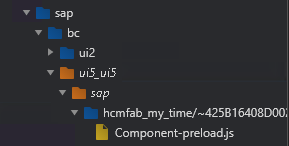
When opening the Dev-Tools for a deployed Fiori App, it will look like this:
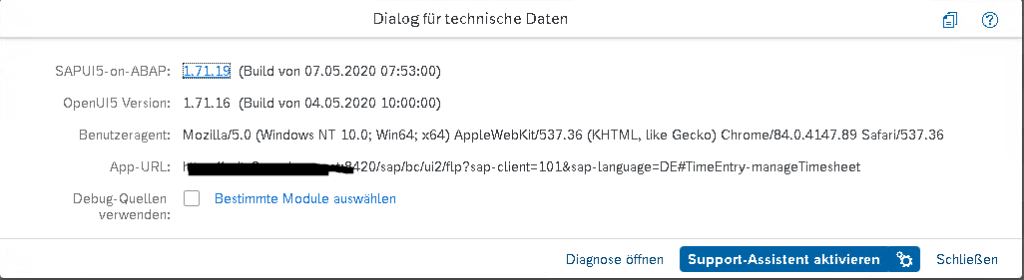
You won’t see any controller.js to debug. What to do? Close the Debugger-Tools and hit CTRL+ALT+SHIFT+P to open the Technical Information Dialog
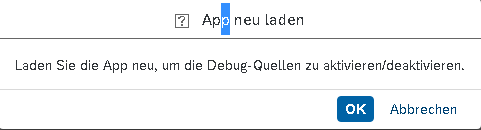
Check the Checkbox (or choose a specific controller) and reload the app.
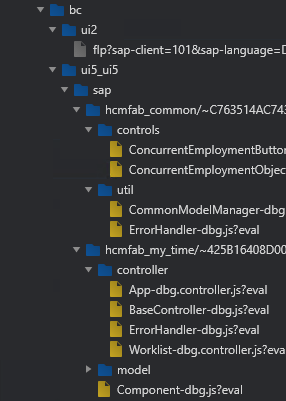
It reloads with a new URL parameter and if you open the Dev-Tools, you will now see the controller.js.
Other options to debug or at least to collect some information about your app are the UI5 Diagnostics (hit CTRL+ALT+SHIFT+S) and the UI5 Inspector which is a Browser Addon.
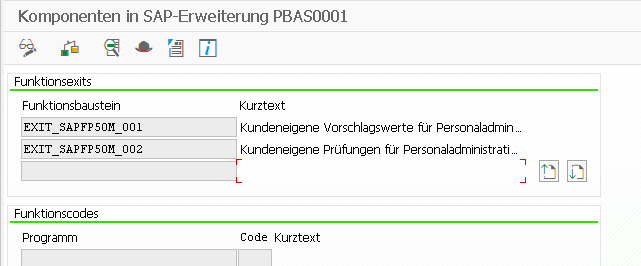
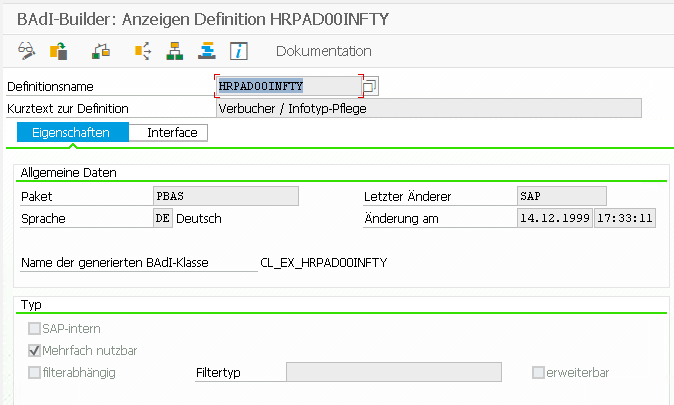
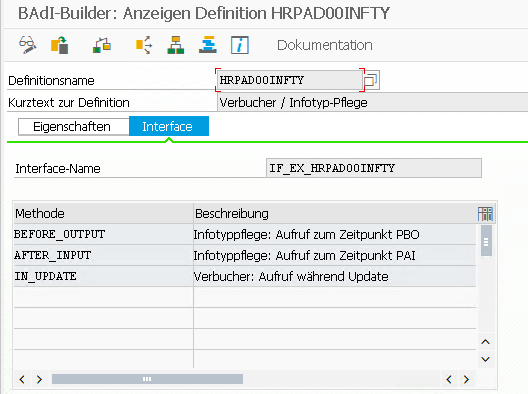
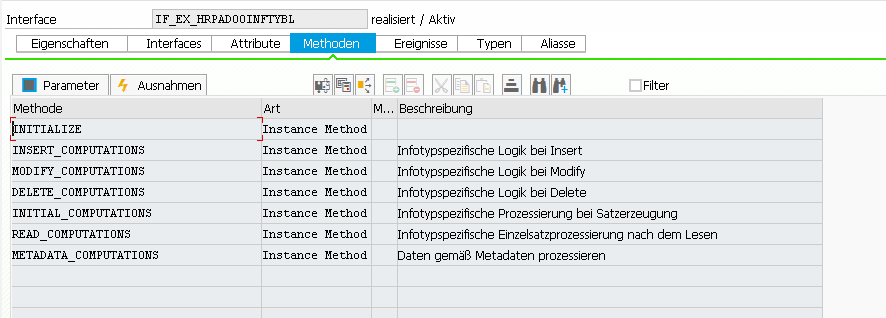
HRPAD00INFTY (method IN_UPDATE) is called by the old infotype framework (PA30, SAP50UPR)
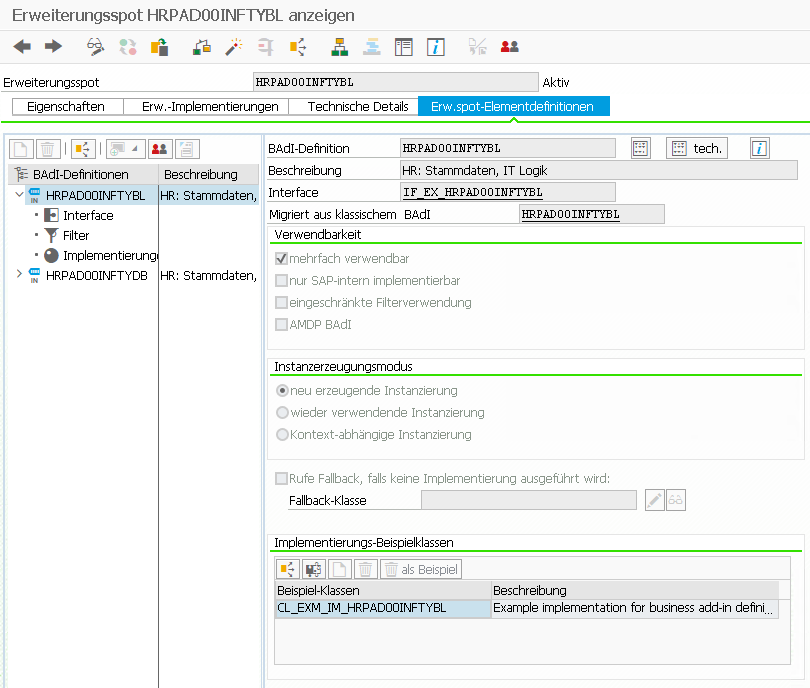
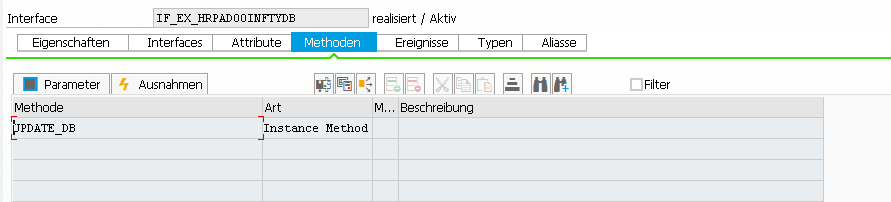
HRPAD00INFTYDB (method UPDATE_DB) is called in the decoupled infotype framework
BAdI: HRPAD00INFTY – Verbucher / Infotyp-Pflege
Interface: IF_EX_HRPAD00INFTY
BAdI: HRPAD00INFTYDB – HR: Stammdaten, Infotype DB Update Logik
“The BAdI is called, after the decoupled infotype framework writes the infotype data to the database. This is done during method FLUSH.” Note: The Infotypes 2000-2999 are not decoupled yet! More here and here.
RPCALCD0 – Abrechnungsprogramm Deutschland (Name des HR-Formulars lässt sich über T-Code HRFORMS ermitteln) RPCLSTRD – Anzeige des Clusters RD (Abrechnungsergebnisse Deutschland), Tcode: PC_PAYRESULT H99_DISPLAY_PAYRESULT – Anzeigen von Abrechnungsergebnissen H99CWTR0 – Lohnarten-Reporter, Tcode: PC00_M99_CWTR_NO_OC
HR_GET_PAYROLL_RESULTS – Lesen von Abrechnungsergebnissen für Monats- und Jahresreports PYXX_READ_PAYROLL_RESULT – Generischer Import von Abrechnungsergebnissen HRCM_PAYROLL_RESULTS_GET – Abrechnungsdaten einer Person ermitteln
Eine weitere Möglichkeit ist die Nutzung der logischen Datenbank PNP. Die Verwendung logischer Datenbanken ist in den meisten anderen Modulen obsolet, im HR Umfeld aber noch stark verbreitet.
*&---------------------------------------------------------------------*
*& Report  ZGETPAYROLL
*& Eigenschaften: Selektionsbildvariante 900, HR-Reportklasse PY_DEF.
*&---------------------------------------------------------------------*
*&
*&
*&---------------------------------------------------------------------*

REPORT  ZGETPAYROLL.

TABLES: PERNR, PYORGSCREEN, PYTIMESCREEN.

INFOTYPES: 0002.

NODES: PAYROLL TYPE PAYDE_RESULT.

START-OF-SELECTION.

GET PERNR.

RP_PROVIDE_FROM_LAST P0002 SPACE PN-BEGPS PN-ENDPS.

WRITE:/ PERNR-PERNR, P0002-VORNA, P0002-NACHN.

GET PAYROLL.

  LOOP AT PAYROLL-INTER-RT INTO DATA(WA_RT).
    WRITE:/ WA_RT-LGART, WA_RT-BETRG.
  ENDLOOP.

END-OF-SELECTION.
Oder in Kombination mit einem Fuba:
*&---------------------------------------------------------------------*
*& Report  ZGETPAYROLL
*& Eigenschaften: HR-Reportklasse __M00001.
*&---------------------------------------------------------------------*
*&
*&
*&---------------------------------------------------------------------*

REPORT ZGETPAYROLL.

TABLES: pernr.               "Necessary for get pernr

INFOTYPES: 0001,             "Organisatorische Zuord
           0002,             "Daten zur Person
           0006,             "Anschrift
           0057.             "Mitgliedschaften

DATA: l_payroll_result TYPE payat_result OCCURS 0 WITH HEADER LINE.


START-OF-SELECTION.

GET pernr.

rp_provide_from_last p0001 '' pn-begda pn-endda.

CALL FUNCTION 'HR_GET_PAYROLL_RESULTS'
    EXPORTING
      pernr                         = pernr-pernr
      permo                         = pn-permo
      pabrj                         = pn-pabrj
      pabrp                         = pn-pabrp
      actual                        = space         "X actual, ' ' retro-differences
      waers                         = 'EUR'
    TABLES
      result_tab                    = l_payroll_result
    EXCEPTIONS
      no_results                    = 0
      wrong_structure_of_result_tab = 2
      OTHERS                        = 4.
  IF sy-subrc NE 0.
    RETURN. "nächste Pernr
  ENDIF.
First have a look at the Requirements and FAQ. Find the download link in the SAP Support Portal here. You will need a valid S-User and download permissions.
If you are not able to download the installer via Support Portal, there is a little workaround. Both, the installer for SAP Gui for Windows and SAP Gui for Java are also delivered with the AS ABAP 752 SP04, developer edition:
“The actual download (in the form of several .rar files), along with more information is available from the SAP Community Trials and Downloads page. Search for “7.52 SP04″ for convenience.”
You will have to download all 11 .rar files (about 14,6GB). When unziping, you’ll find a folder called client (about 1,2GB) containing both installers.
Installation
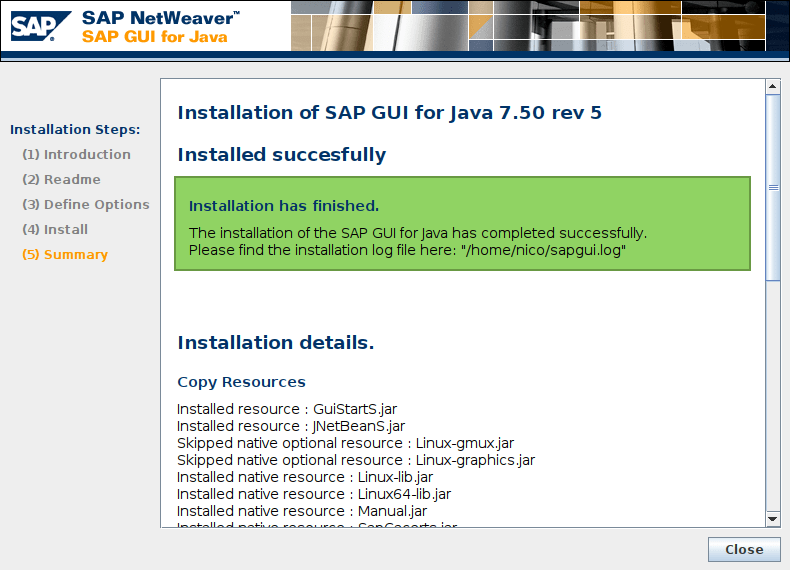
Since SAP Gui 7.50 Rev 5, Oracles JDKs is not necessary to run SAP Gui for Java, instead you are able to use OpenJDK. Read more about it here. And since version 7.50 Rev 8 the installer includes SapMachine and OpenJFX. Read more about it here. In this case, you don’t even have to install OpenJKD and OpenJFX by yourself and don’t have specify the module path, because it comes containerized within the SAP Gui. So better first check the version of your downloaded gui. I’ve got SAP Gui 750 rev 5 within the AS ABAP 752 SP04. So let’s install openJDK & openJFX.
cd JavaGUI/
java -jar PlatinGUI750_5-80002496.JAR install
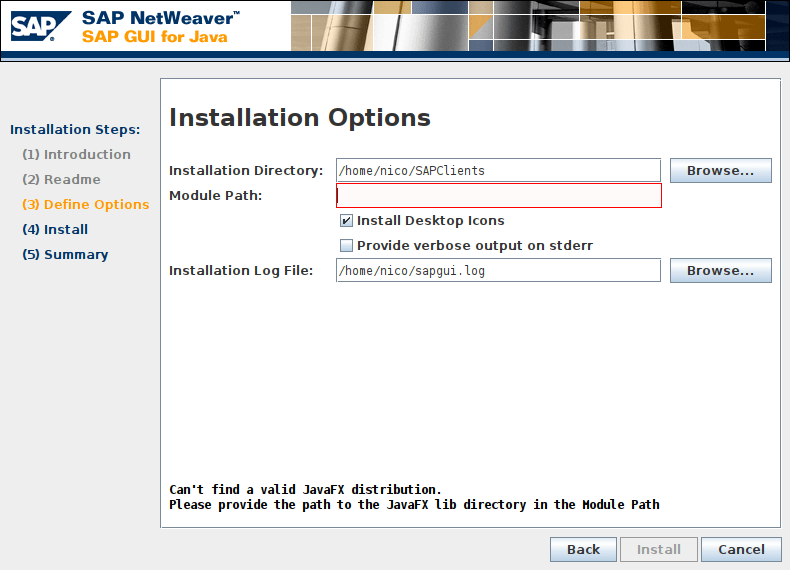
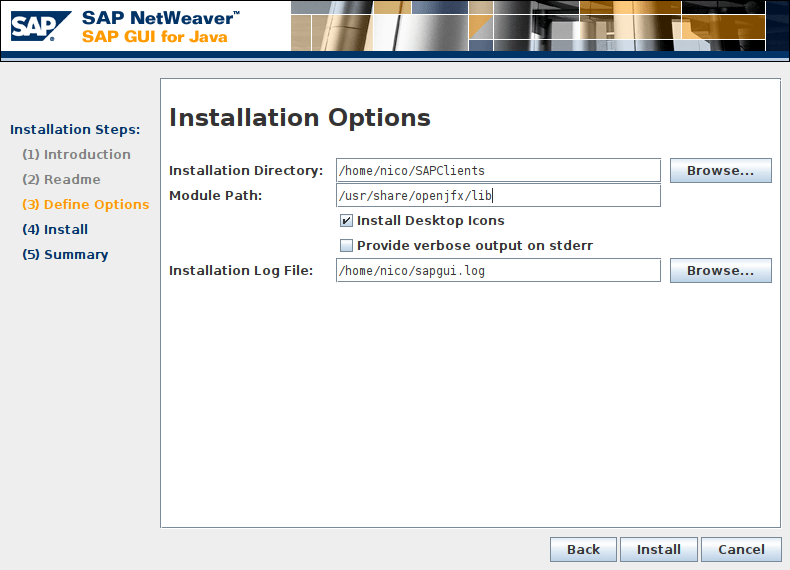
The important step during the installation of SAP Gui for Java Rev 5 is to define the option for the module path. The module path hast to point to the OpenJFX lib-path:
/usr/share/openjfx/lib
Now you should be able to run the SAP Gui on Linux Mint 20
Eclipse ADT
When using Eclipse with ADT in combination with SAP Gui for Java and receiving the following error:
"The system reqirements are not met.Could not find: javafx.propertiesin: /usr/lib/jvm/java-11-openjdk-amd64/libYour Java Virtual Machine seems not to support JavaFX, required to run the SAPGUI for Java 7.50 rev 5.Please make sure you provide a valid path to the Java FX modules during guiinstallation."
You also have to add the OpenJFX path to the eclipse.ini file. Read more about it here.
  DATA: BEGIN OF i0008,
        lgart LIKE p0008-lga01,
        betrg LIKE p0008-bet01,
        anzhl LIKE p0008-anz01,
        eitxt LIKE p0008-ein01,
        opken LIKE p0008-opk01,
        indbw LIKE p0008-ind01,
        END OF i0008.

  rp-provide-from-last p0008 space pn-begda pn-endda.

  DO 40 TIMES
           VARYING i0008-lgart FROM p0008-lga01 NEXT p0008-lga02
           VARYING i0008-betrg FROM p0008-bet01 NEXT p0008-bet02
           VARYING i0008-anzhl FROM p0008-anz01 NEXT p0008-anz02
           VARYING i0008-eitxt FROM p0008-ein01 NEXT p0008-ein02
           VARYING i0008-opken FROM p0008-opk01 NEXT p0008-opk02
           VARYING i0008-indbw FROM p0008-ind01 NEXT p0008-ind02.
      IF i0008-lgart = '2001'.
        EXIT.
      ENDIF.
  ENDDO.