
“Gadgetbridge is a free and open source Android application that allows you to pair and manage various gadgets such as smart watches, bands, headphones, and more without the need for the vendor application. So in short, you can use Gadgetbridge instead of relying on your gadget’s own proprietary app.”
Category: Android
[LineageOS] When someone calls, my own number is appended to the caller’s number
I had an issue with my Xiaomi Mi 8 phone, which really annoyed me. For some callers, my phone number was somehow appended to the caller’s phone number. This also meant that the number was not matched with my contacts. It looked like this:

When searching, I found a reddit post (as always) where someone had the exact same problem, even using the same phone. Therefore, I’m not sure if the issue is Phone or Lineage related.
https://www.reddit.com/r/LineageOS/comments/inud0m/incoming_calls_caller_id_issue
The suggested solution is to disable VoLTE. To be honest, I didn’t even know what VoLTE was exactly. After reading a bit, I found the required setting under: Settings → Network and Internet → SIM cards → 4G calls.
And fortunately, it also helped in my case. I could not really notice a difference regarding the phone quality, therefore I’m fine with it.

[Android] Upgrading LineageOS 19.1 to 20.0 on my Xiaomi Mi 8 (dipper)
Install the Android Debug Bridge (ADB)
https://wiki.lineageos.org/adb_fastboot_guide.html
https://github.com/M0Rf30/android-udev-rules#installation
# check if device is found
adb devices
# reboot into sideload modus
adb reboot sideload
Or manually boot into TWRP recovery, holding Volume Up + Power when the phone is off. Navigate to Advanced → ADB Sideload.
Update MIUI Firmware
Following the docs, I first had to check the Firmware version. V12.0.3.0.QEAMIXM was required, and I already had it installed.
If you’re on an older version, download the right MIUI Firmware for your device from https://xiaomifirmwareupdater.com/firmware/dipper/.
Flash the new Firmware via TWRP or via ADB sideload.
adb sideload fw_dipper_miui_MI8Global_V12.0.3.0.QEAMIXM_7619340f8c_10.0.zip
Download and flash new LineageOS image
I’m using the LineageOS fork LineageOS for microG. Download it from here: https://download.lineage.microg.org/dipper/ (MI 8 = dipper)
The upgrade steps are the same as for the official rom: https://wiki.lineageos.org/devices/dipper/upgrade. In my case only flashing the new image.
adb sideload lineage-20.0-20231204-microG-dipper.zip
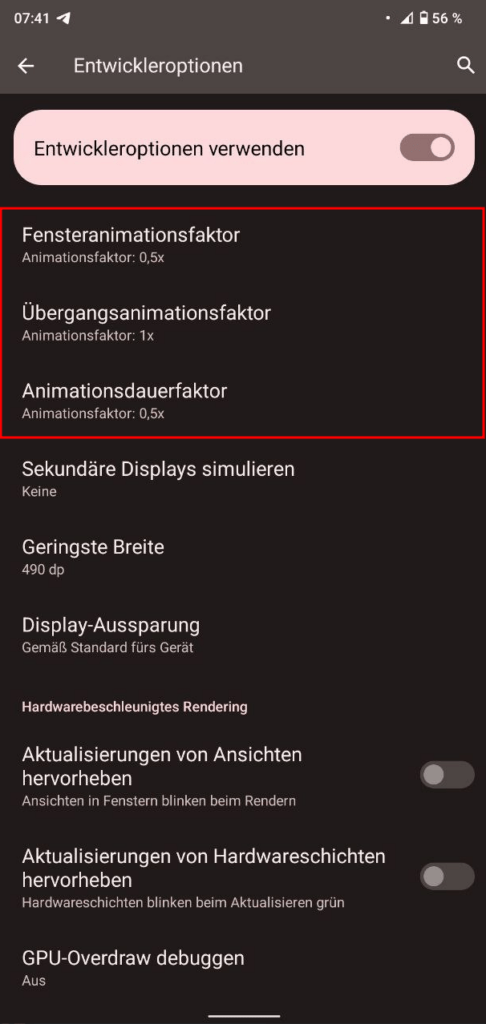
[Android] Speed up the phone (or at least the UX) by doubling the animation speed
Settings -> System -> Developer Options and search for Animation
[Android] Upgrading LineageOS 18.1 to 19.1 on my Xiaomi Mi 8 (dipper)
Install the Android Debug Bridge (ADB)
https://wiki.lineageos.org/adb_fastboot_guide.html
https://github.com/M0Rf30/android-udev-rules#installation
# check if device is found
adb devices
# reboot into sideload modus
adb reboot sideload
Or manually boot into TWRP recovery, holding Volume Up + Power when the phone is off. Navigate to Advanced -> ADB Sideload.
Update MIUI Firmware
Following the docs, I first had to check the Firmware version. V12.0.3.0.QEAMIXM was required, and I already had it installed.
If you’re on an older version, download the right MIUI Firmware for your device from https://xiaomifirmwareupdater.com/firmware/dipper/.
Flash the new Firmware via TWRP or via ADB sideload.
adb sideload fw_dipper_miui_MI8Global_V12.0.3.0.QEAMIXM_7619340f8c_10.0.zip
Download and flash new LineageOS image
I’m using the LineageOS fork LineageOS for microG. Download it from here: https://download.lineage.microg.org/dipper/ (MI 8 = dipper)
The upgrade steps are the same as for the official rom: https://wiki.lineageos.org/devices/dipper/upgrade. In my case only flashing the new image.
adb sideload lineage-19.1-20221217-microG-dipper.zip
[Android] Upgrading LineageOS 17.1 to 18.1 on my Xiaomi Mi 8 (dipper)
Install the Android Debug Bridge (ADB)
https://wiki.lineageos.org/adb_fastboot_guide.html
https://github.com/M0Rf30/android-udev-rules#installation
# check if device is found
adb devices
# reboot into sideload modus
adb reboot sideload
Or manually boot into TWRP recovery, holding Volume Up + Power when the phone is off. Navigate to Advanced-> ADB Sideload.
Update MIUI Firmware
Following the docs, I first had to check the Firmware version. I was running V12.0.2.0.QEAMIXM, but V12.0.3.0.QEAMIXM is required.
Download the right MIUI Firmware for your device from https://xiaomifirmwareupdater.com/firmware/dipper/.
Flash the new Firmware via TWRP or via ADB sideload.
adb sideload Downloads/fw_dipper_miui_MI8Global_V12.0.3.0.QEAMIXM_7619340f8c_10.0.zip
Download and flash new LineageOS image
I’m using the LineageOS fork LineageOS for microG. Download it from here: https://download.lineage.microg.org/dipper/ (MI 8 = dipper)
The upgrade steps are the same as for the official rom: https://wiki.lineageos.org/devices/dipper/upgrade. In my case only flashing the new image.
adb sideload Downloads/lineage-18.1-20220602-microG-dipper.zip
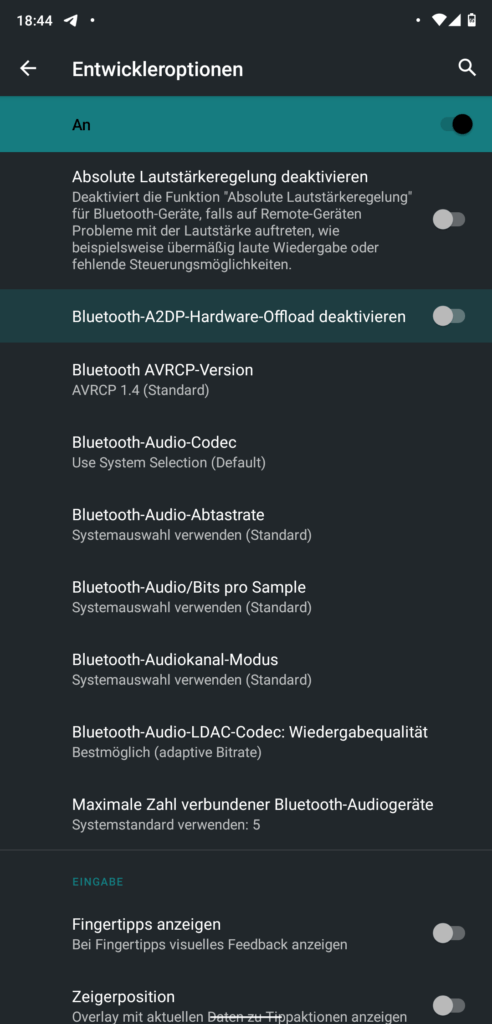
[Android] Upgrade to LineageOS 17.1 – fix audio bluetooth issue
After upgrading to LineageOS 17.1 I wasn’t able to play any audio via bluetooth connection from my Xiaomi Mi 8.
To fix this issue, just go to developer options and disable Bluetooth-AD2P-Hardware-Offload and reboot your phone.
[Android] Upgrading LineageOS 16.0 to 17.1 on my Xiaomi Mi 8 (dipper)
Install the Android Debug Bridge (ADB)
https://wiki.lineageos.org/adb_fastboot_guide.html
https://github.com/M0Rf30/android-udev-rules#installation
# check if device is found
adb devices
# reboot into sideload modus
adb reboot sideload
Or manually boot into TWRP recovery, holding Volume Up + Power when the phone is off. Navigate to Advanced-> ADB Sideload.
Update MIUI Firmware
If your current MIUI Firmware does not support Android 10, you have to update it first.
Download the newest MIUI Firmware for your device from https://xiaomifirmwareupdater.com/firmware/dipper/.
Flash the new Firmware via TWRP or via ADB sideload.
adb sideload Downloads/fw_dipper_miui_MI8Global_V12.0.2.0.QEAMIXM_4e38c51916_10.0.zip
Download and flash new LineageOS image
I’m using the LineageOS fork LineageOS for microG. Download it from here: https://download.lineage.microg.org/dipper/ (MI 8 = dipper)
The upgrade steps are the same as for the official rom: https://wiki.lineageos.org/devices/dipper/upgrade. In my case only flashing the new image.
adb sideload Downloads/lineage-17.1-20210327-microG-dipper.zip
[Wireguard] Wireguard on Android
Update 11.05.2020: I recommend using the PiVPN script (especially when using a unprivileged container). https://nocin.eu/wireguard-set-up-wireguard-using-pivpn-inside-lxc/
In the F-Droid Store you’ll find the wireguard android app.
To get wireguard running, add a new peer to your server. So ssh into your sever (in my case an lxc on proxmox) and create a new key pair.
wg genkey | tee privatekey | wg pubkey > publickey
Now create the android.conf. Define the interface and add your server as peer.
[Interface]
PrivatKey = <android_privat_key>
Address = 192.168.1.3/24
DNS = 192.168.1.102

[Peer]
PublicKey = <server_public_key>
AllowedIPs = 0.0.0.0/0
Endpoint = my.doamin.org:51820
PersistentKeepalive = 25
Then add the new android peer to the server config.
[Peer]
PublicKey = <android_public_key>
AllowedIPs = 192.168.1.3/32
Now restart the wireguard interface to load the new config:
wg-quick down wg0
wg-quick up wg0
The fastest way to get your config on the android client is using a QR-Code. I used greencode for this.
apt install greencode
qrencode -t ansiutf8 < android.conf
Open your wireguard app, scan the QR-Code and connect to your server.