
Homelab, Linux, JS & ABAP (~˘▾˘)~
 

[NGINX] Reverse Proxy

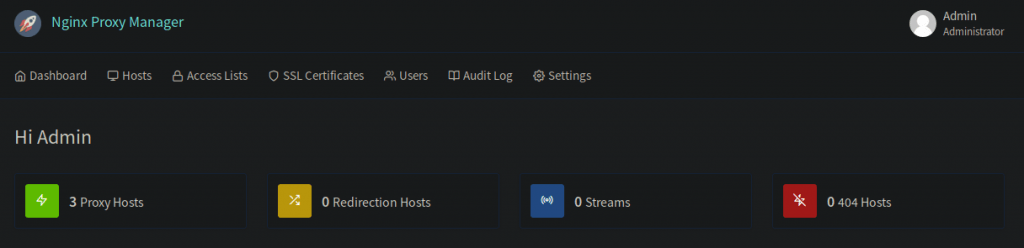
As I installed OnlyOffice to edit Word and Excel files directly from my Nextcloud, I had to setup a reverse proxy because OnlyOffice needs to run on a separate Server/Container and has to be reachable via https. First I tried to setup Nginx manually (way to complicated to handle in my opinion), then I tried Traefik (if you’re running a docker einvironment, I’m sure that’s a good solution) and in the end, I stuck with Nginx Proxy Manager. If you already have docker installed, this is by far the easiest way and also provides an awesome WebUI, where you can manage all your proxy hosts and SSL certificates.

The installation is done in just three simple steps: Set the port fowarding (80 and 443) in your router to your server/container, grab all the files in the doc/example/ folder and run

docker-compose up -d

And it’s done.
Now just enter the WebUI (ip:81) and setup all your routes.
[Docker] Install JDownloader2 Headless

The first JDownloader installation in an Debian Stretch Linux Container I did manually following this guide. It was running stable since then. Now I wanted to upgrade to Debian Buster and to took the chance trying a Docker JDownloader installation. I already had a Debian Buster Container with Docker installed (look here for a short installation guide), so I just had do spin up the new JDownloader Docker like it is described here.
With parameter -v you are able to mount a specific download location inside Docker. I also added Port 3129 to enable MyJdownloader direct connection.

docker run -d \
    --name=jdownloader-2 \
    -p 5800:5800 \
    -p 3129:3129 \
    -v /docker/appdata/jdownloader-2:/config:rw \
    -v /mnt/nfs/downloads:/output:rw \
    jlesage/jdownloader-2

If you want JDownloader to autostart and forgot the “–restart” parameter during the “run” command (as I did), just use docker update:

docker update --restart always jdownloader-2